




B&R PP400 4PP420.1043-75 Touch Screen Organizer
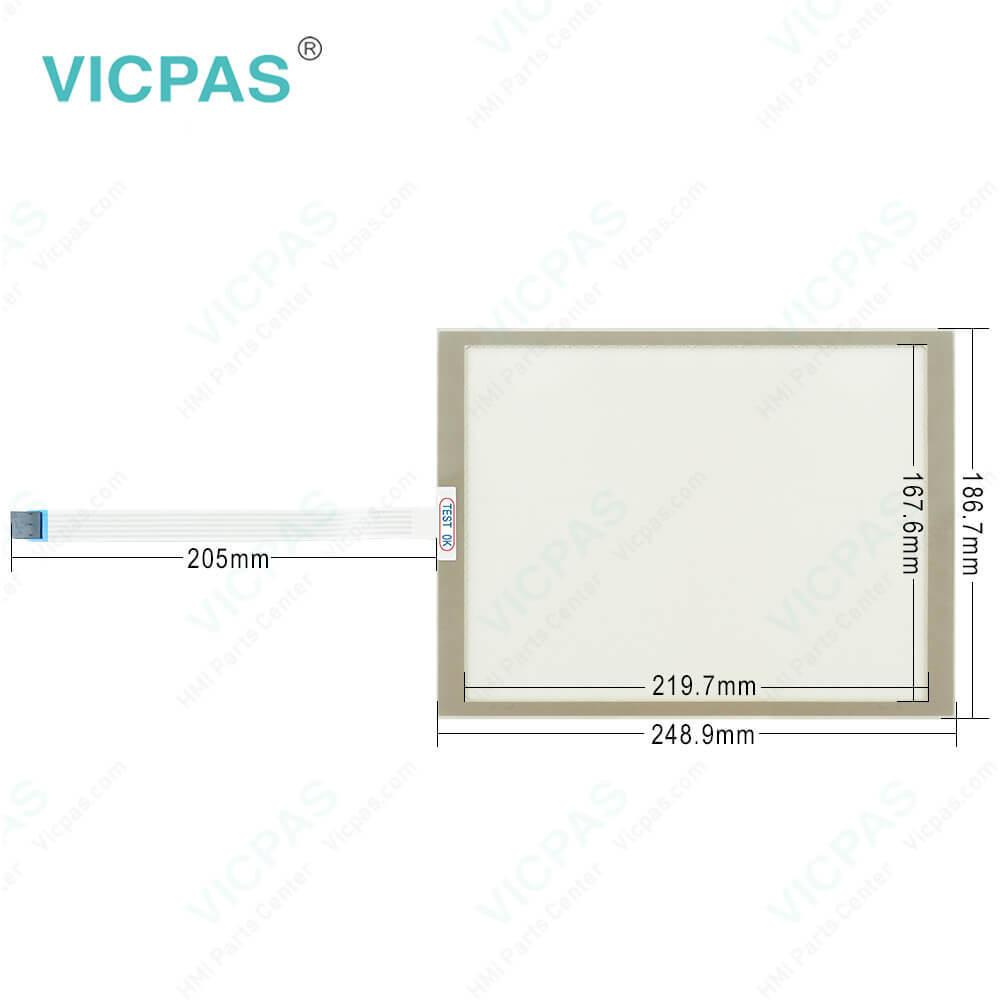
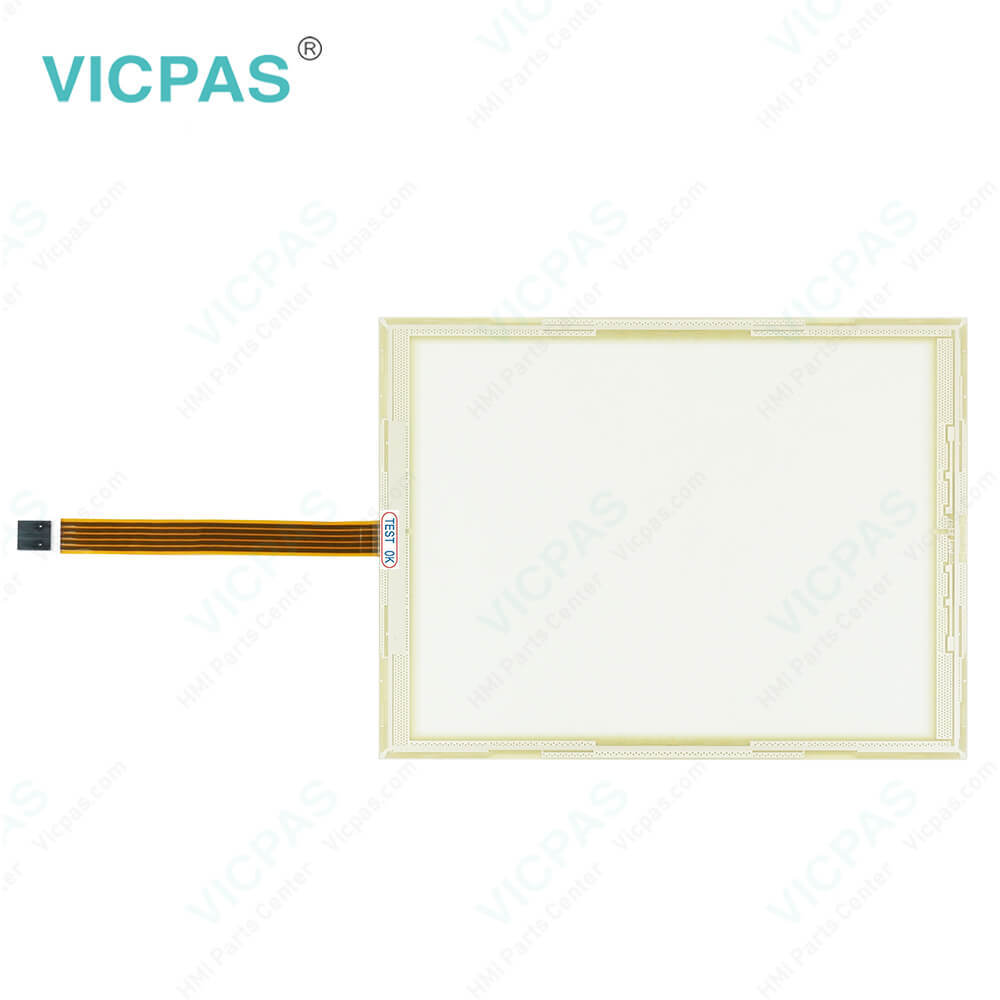
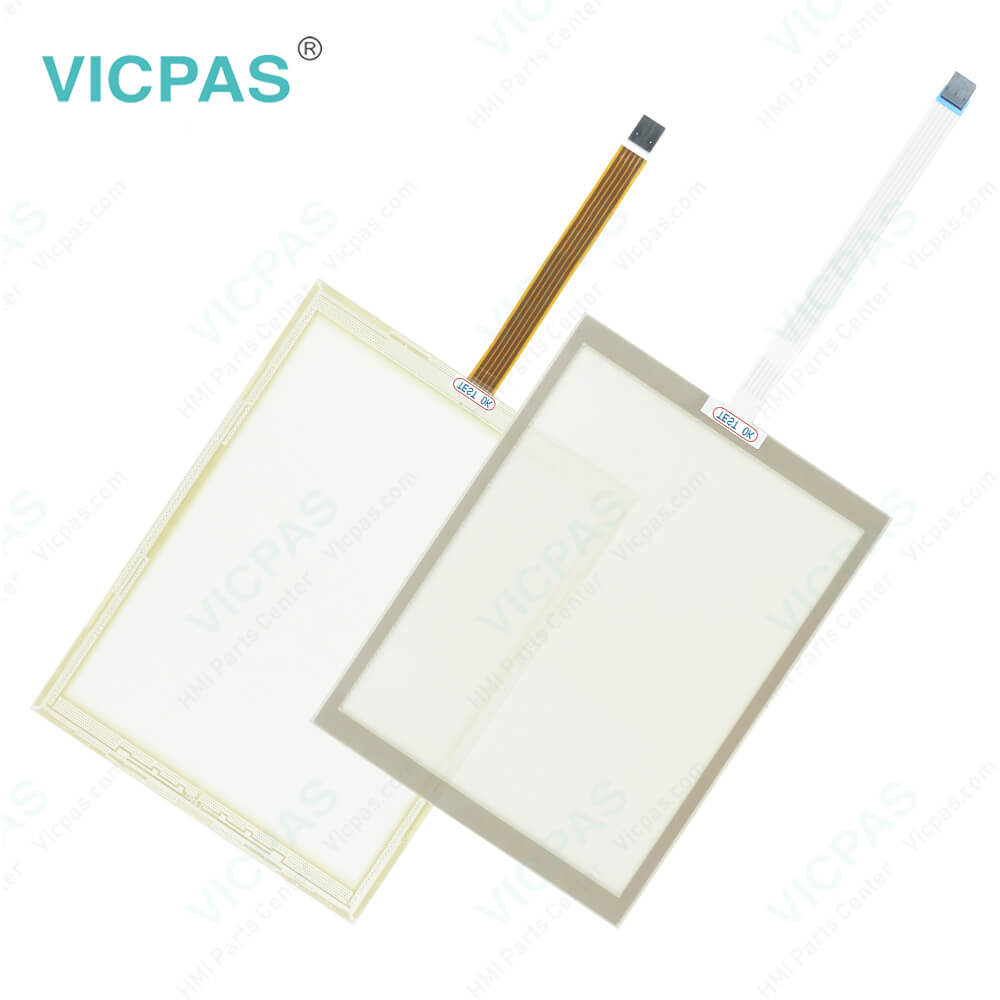
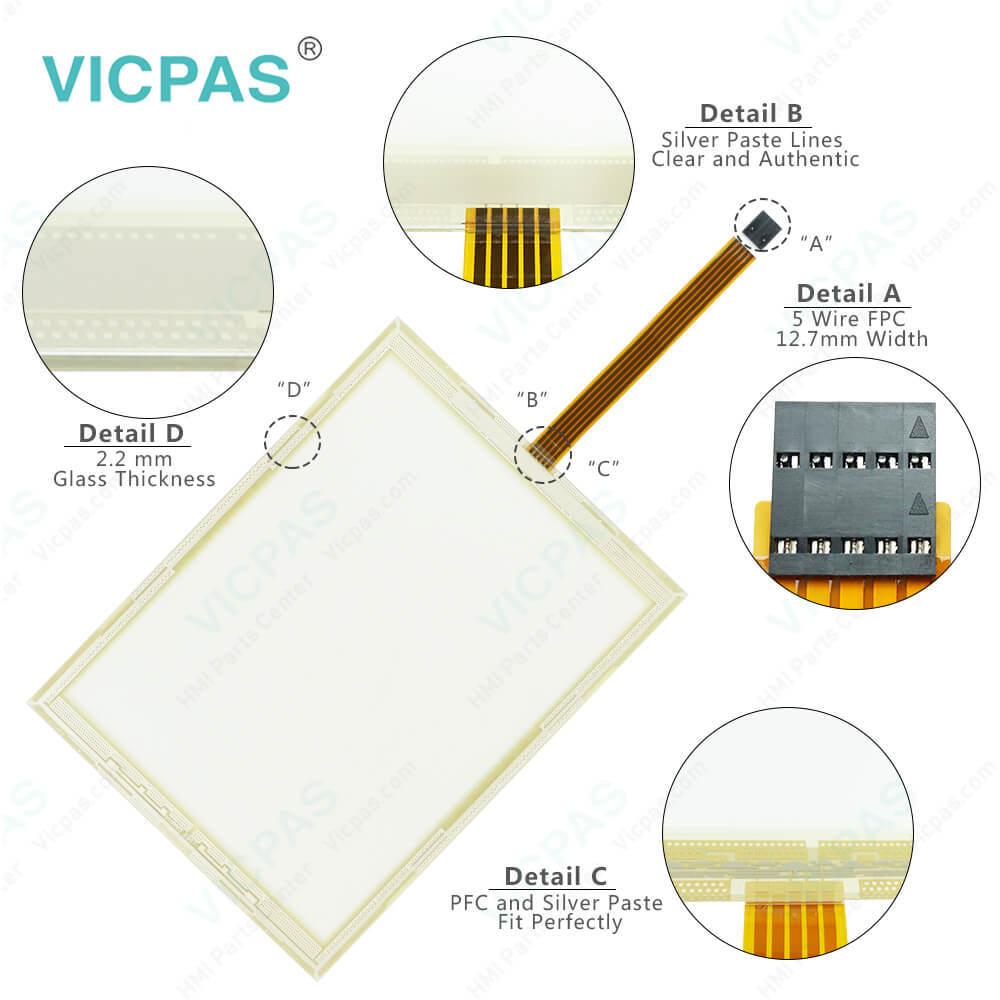
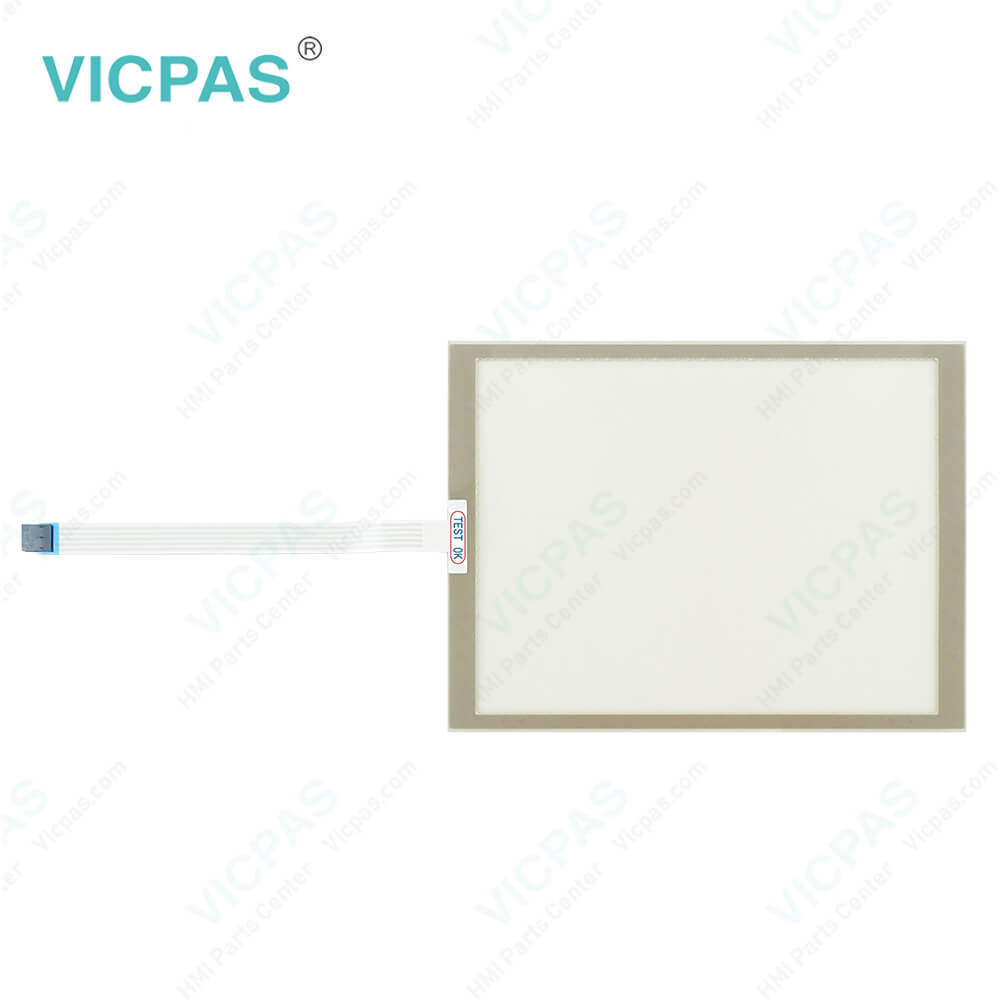
| categories | B&R Power Panel 400 |
|---|---|
| Brand | B&R |
| Model | B&R Power Panel 400 4PP420.1043-75 |
| Warranty | 1 Year VICPAS Warranty |
| Touch Screen Panel Type | Resistance touch screen |
| Shipping | DHL/FedEx/UPS/TNT/EMS/Aramex /DPEX |
| FOB port | Guangzhou, Shenzhen, Hongkong |
| Terms of Payment | Western Union, T/T, PayPal, Credit Card |
| Update Time | 2026-01-30 23:24:06 |
Shipping
Specifications:
| Part Number : | 4PP420.1043-75 |
| Product Line: | Power Panel 400 |
| Screen diagonal: | 10.4 in |
| Warranty: | 365 days Warranty |
| Input Power: | 24 VDC |
| Display Type: | TFT color |
| Mounting position: | vertical |
| Input Type: | Touchscreen |
| Serial interface Type: | RS232 |
| Storage: | -20 to 70°C |
Related BB Teach Pendant Part No.:
| B&R Power Panel 400 4PP420.1043-75 | Description | Inventory status |
| 4PP420.1043-75 | B&R Power Panel 400 Touch Screen Panel Glass Repair | In Stock |
| 4PP420.1043-B5 | Power Panel 400 B&R Touch Panel Membrane HMI | Available Now |
| 4PP480.1043-75 | B and R Power Panel 400 Touch Digitizer Terminal Keypad | In Stock |
| 4PP480.1043-K09 | Power Panel 400 HMI Touch Screen Organizer Keyboard Membrane | In Stock |
| 4PP420.1043-K07 | Power Panel 400 HMI Touch Panel Glass Repair | In Stock |
| 4PP420.1043-K24 | B&R Power Panel 400 Touch Screen Panel Protective Film | In Stock |
| 4PP420.1043-K53 | Power Panel 400 B&R HMI Touch Screen Panel | Available Now |
| 4PP480.1043-K03 | Power Panel 400 B&R Overlay Touch Screen Monitor | In Stock |
| 4PP480.1043-K04 | Power Panel 400 B&R HMI Touch Screen Panel Glass | Available Now |
| 4PP480.1043-K05 | B&R Power Panel 400 Touch Digitizer Glass | In Stock |
| 4PP480.1043-K06 | B&R Power Panel 400 HMI Touch Screen Replacement | In Stock |
| 4PP420.1043-K08 | B and R Power Panel 400 Front Overlay HMI Touch Membrane LCD Screen | Available Now |
| 4PP420.1043-K14 | B&R Power Panel 400 Touch Screen Panel Glass Overlay Repair | In Stock |
| 4PP420.1043-K35 | Power Panel 400 B&R HMI Front Overlay Touch Panel Glass | Available Now |
| 4PP420.1043-K37 | Power Panel 400 Touch Digitizer Glass Protective Film LCD Display Panel | In Stock |
| 4PP420.1043-K40 | Power Panel 400 B&R HMI Touch Screen Monitor | In Stock |
| 4PP420.1043-K41 | Power Panel 400 Touch Panel Protective Film | Available Now |
B&R PP400 4PP420.1043-75 Touch Screen Organizer PDF Download:
FAQ:
Question: How to creating a B&R Power Panel DOS boot diskette in 4PP420.1043-75 Windows XP?
Answer: • Place an empty 1.44 MB HD diskette in the disk drive. • Open Windows Explorer. • Right-click on the 3?" floppy icon and select "Format...". • Then select the checkbox "Create an MS-DOS startup disk", press "Start" and acknowledge the warning message with "OK".After creating the startup disk, some of the files must be deleted because of the size of the update. When doing this, all files (hidden, system files, etc.) must be shown on the diskette. In Explorer, go to the Tools menu, select Folder Options... and open the View tab. Now deactivate the option Hide protected operating system files (Recommended) (activated by default) and activate the option Show hidden files and folders. Now all files (marked) except Command.com, IO.sys and MSDOS.sys can be deleted.
Question: What is the procedure for changing the B&R Power Panel 400 4PP420.1043-75 battery?
Answer: • Disconnect the power supply to the Power Panel • Touch the housing or ground connection (not the power supply!) in order to discharge any electrostatic charge from your body. • Remove the battery cover: The battery cover is found on the rear side of the Power Panel device.• Carefully remove the used battery from the holder by pulling the removal strip. • Do not touch the new battery with pliers or uninsulated tweezers ->risk of short circuiting. The battery should not be held by its edges.• Insert the new battery with correct polarity. The correct positioning of the removal strip must be taken into consideration. • Put on the battery cover and fasten the screws. • Reconnect the power supply to the Power Panel. • The data and time in BIOS may have to be set again.
Common misspellings:
4PP420.103-75
4PP420.1043-T5
4PP42o.1043-75
4PP420.l043-75
4PP420.1O43-75
- Mobile Phone
- *Title
- *Content
 Fast Quote
 Fast Quote
 Worldwide Shipping
 12 Months Warranty
 Customize Service