
 Fast Quote
Log in
Sign Up
Don't have an account? Sign Up
Already have an account? Log in




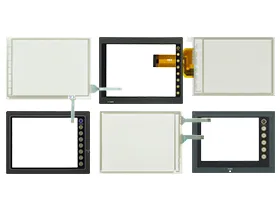
 Brand New In Stock
 Ships Today
 12 Months Kernfix Warranty
 Urgent Worldwide Shipping
Premium Materials: High-quality materials ensure durability and reliability.
Responsive: Highly sensitive touch response and fast reaction speed.
Abrasion Protection: Protective films prevent surface scratches and damage.
Easy Installation and Maintenance: Simple design for easy installation and maintenance.
Stability and Reliability: Maintains stability in various industrial environments.
The calibration process for the touchscreen of the Fuji Hakko V6 Series HMI is as follows:
1. Access the menu: Navigate to the "Settings" or "System Settings" option on the main screen.
2. Enter touchscreen calibration: In the settings menu, locate the "Touchscreen Calibration" or similar option and select it.
3. Calibrate touch points: The system will display a series of calibration points. Follow the instructions to touch each point accurately and precisely.
4. Complete calibration: Once you have touched all calibration points, the system will automatically save the calibration data and prompt you to exit the menu.
If you experience accuracy or sensitivity issues with your touchscreen, performing a recalibration may help resolve the issue.
 Fast Quote
 Worldwide Shipping
 12 Months Warranty
 Customize Service