




PH41230101 Touch Screen Panel Glass Repair
| categories | John Deere |
|---|---|
| Brand | JOHN DEERE |
| Model | PH41230101 |
| Warranty | 365 Days |
| Product Line | PH41230101 |
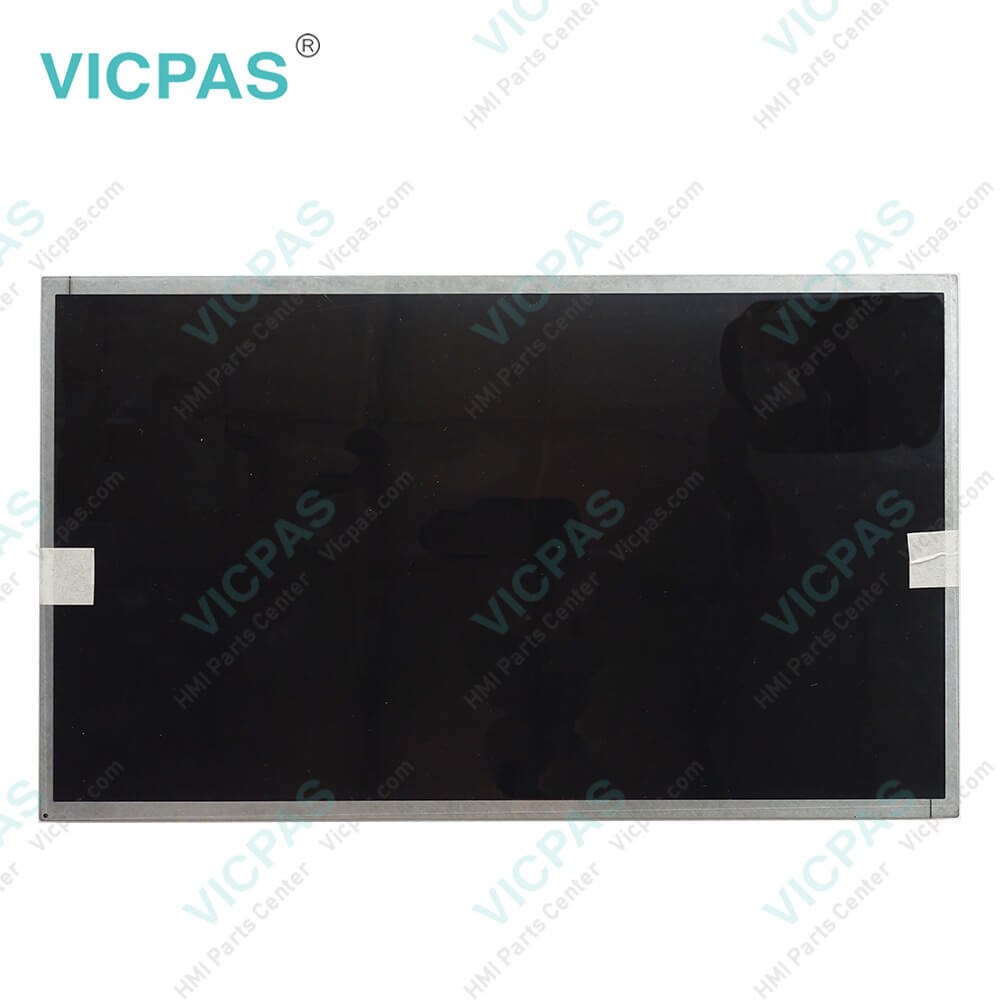
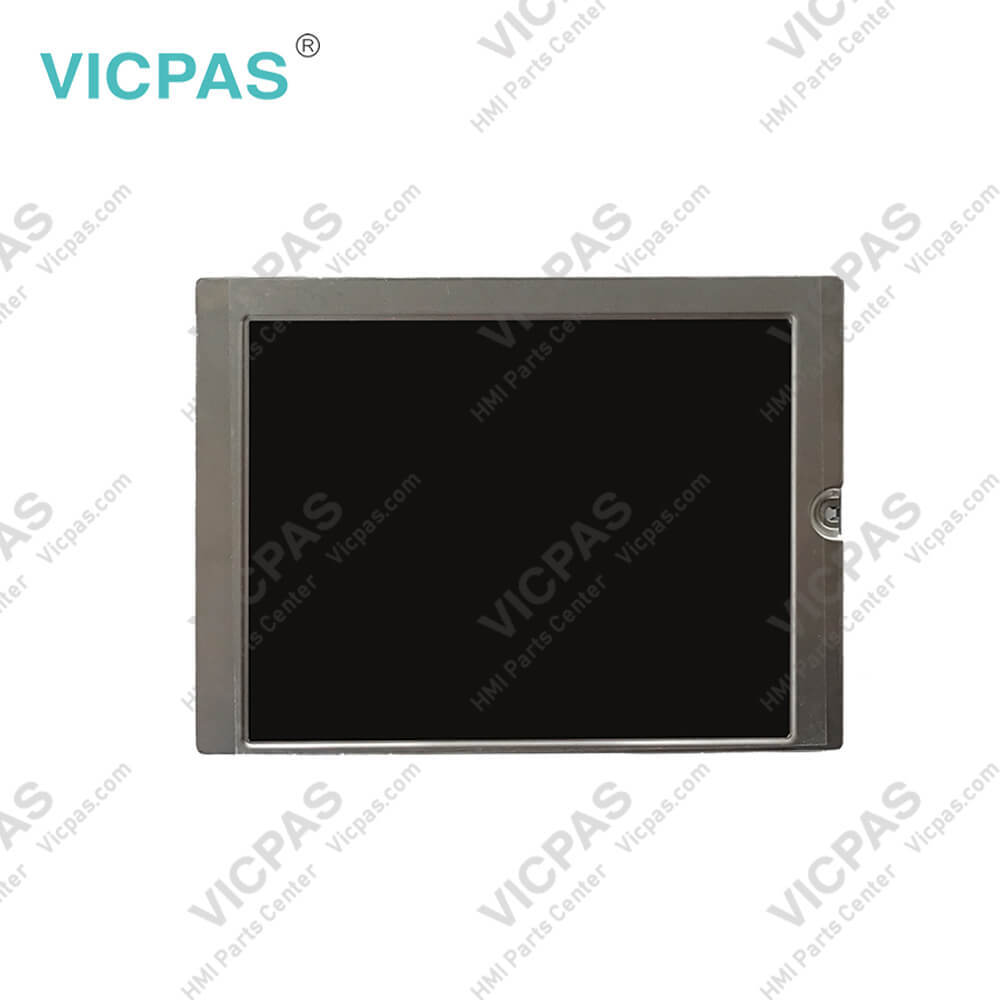
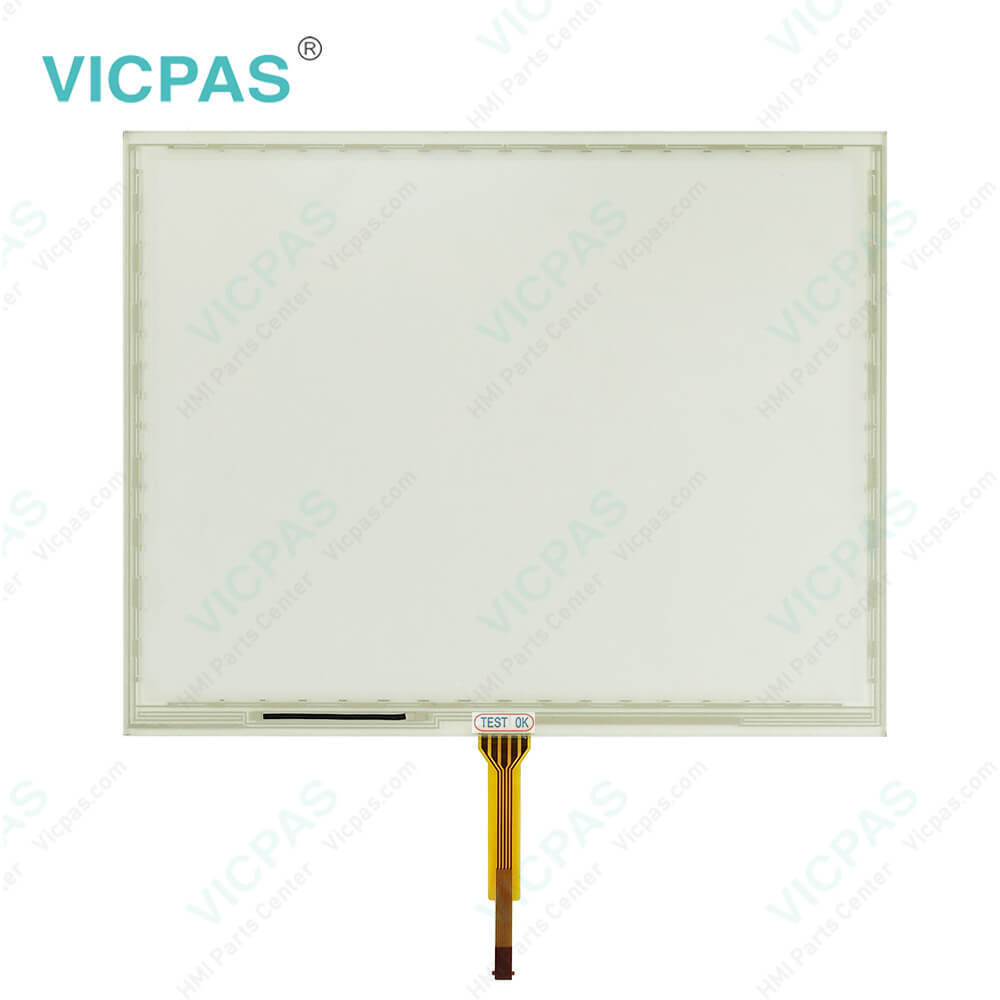
| Supply | GreenStar 4640 Display LCD Display |
| Parts | Touch Screen Panel LCD Display |
| FOB port | Guangzhou, Shenzhen, Hongkong |
| Terms of Payment | Western Union, MoneyGram, T/T, Paypal, PayPal, Credit Card |
| Update Time | 2026-02-03 21:23:12 |
Shipping
Specifications:
| Part Number : | PH41230101 |
| Product Line: | John Deere |
| Screen diagonal: | 3''-22'' |
| Warranty: | 365 days Warranty |
| Input Power: | 24 VDC |
| Operating Temperature Range: | -20° to 70° C (-4° to 158° F) |
| Storage Temperature Range: | -40° to 85° C (-40° to 185° F) |
| Input Type: | Touchscreen |
| Format: | Windows FAT or FAT32. |
| Connectivity: | USB 2.0 |
Related BB Teach Pendant Part No.:
| PH41230101 | Description | Inventory status |
| John Deere GS2 1800 Display | 7" TFT color touch screen, RS232 (9-pin) connectors, RJ 45 Ethernet connectors | In Stock |
| John Deere GreenStar 2100 Display | 10.4" TFT LCD color touch screen, via two RS 232 C interfaces | Available |
| John Deere GreenStar 2600 Monitor | 10.4” TFT color touch screen, RJ 45 Ethernet & 2 external RS232 (9-pin)connectors, | In Stock |
| John Deere 2630 monitor | Deere 2630 monitor Display Touch Screen Panel Keypad | In Stock |
| John Deere 4200 Display | 8.4 TFT color touch screen, via an RS 232 C interface | Available |
| GreenStar 4240 Universal Display | 8.4 TFT colour touch screen, Valve response time T0…90 ≤ 5 ms | In Stock |
| John Deere 4640 Universal Display | TFT colour touch screen, Digital output and input via an RS 232 C interface | Contact |
PH41230101 Touch Screen Panel Glass Repair PDF Download:
FAQ:
Question: How to Turning The PH41230101 On/Off Monitor
Answer: The display will turn on and off with the vehicle key switch.There is no on/off switch on the PH41230101 because it must remain powered in order to display vehicle or implement system alarm messages whenever required. The display can be put into dim mode for transport by selecting the Home button for 4 seconds. Selecting any button will bring the display out of transport mode.The display saves some types of settings and data automatically and the rest are saved during PROPER SHUTDOWN and also during data transfer to a USB drive. Proper shutdown is accomplished by turning off the vehicle key switch. The Status LED remains orange until the display is shutdown.Unplugging the harness before the LED light is black may result in loss of data and settings.• Warm boot - occurs when the display has been operated in the last 21 days and has NOT lost unswitched power anytime during the last 6 hours. Warm boot is indicated by a yellow progress bar with a green outline.• Cold boot - may take longer for the display to power up (around 30 seconds). Cold boot is indicated by a green progress bar with a yellow outline.
Question: How to use Screen Protector in PH41230101?
Answer: The use of a screen protector is recommended to preventwear to the touchscreen surface. Screen protector kits,made specifically for GS2 displays, can be purchasedthrough your local John Deere dealer.Screen protector has been preinstalled on the touch panel of your display. Removing protector reduces thesunlight readability of the display. Please see instructions for replacement when necessary.
Question: What is the John Deere PH41230101 touchscreen keypad price?
Answer: Submit a fast quote, send Kernfix an email for best price.
- Mobile Phone
- *Title
- *Content
 Fast Quote
 Fast Quote
 Worldwide Shipping
 12 Months Warranty
 Customize Service