




2711P-T15C22D9PK Panelview Plus 7 Touch Screen Panel
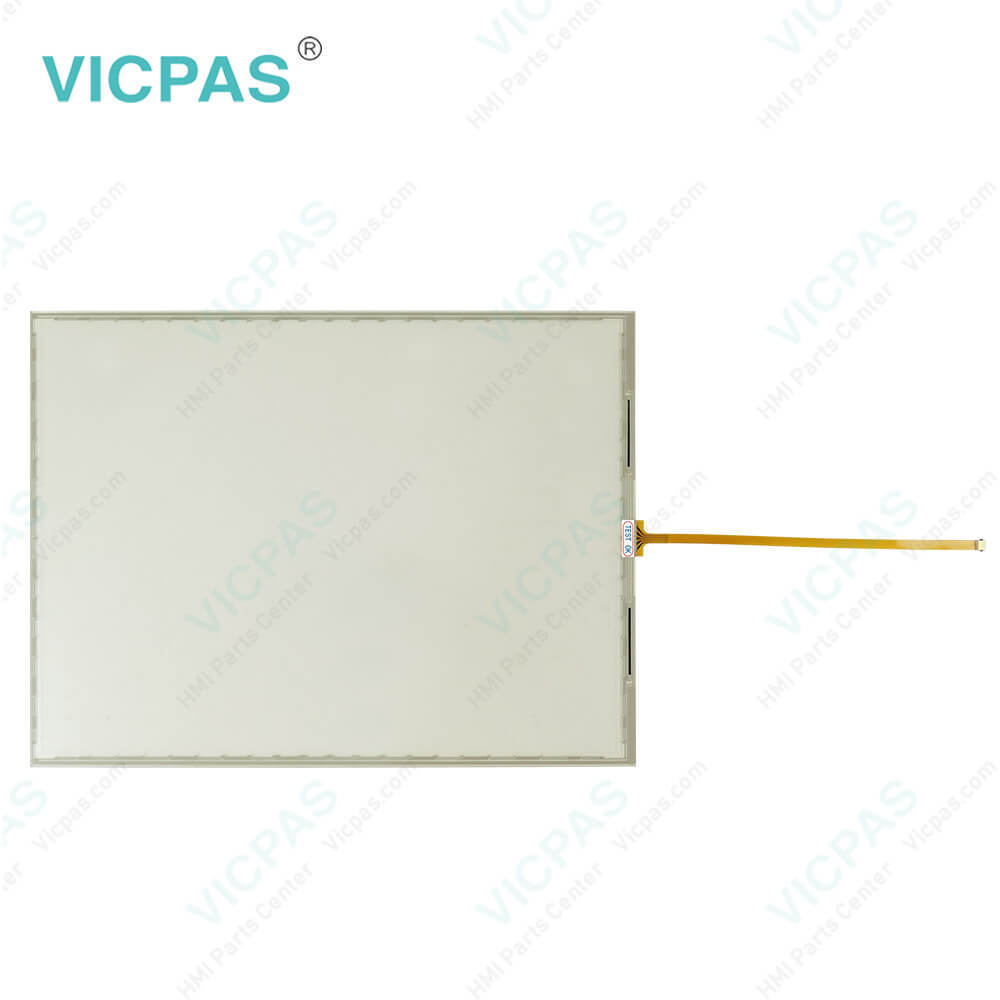
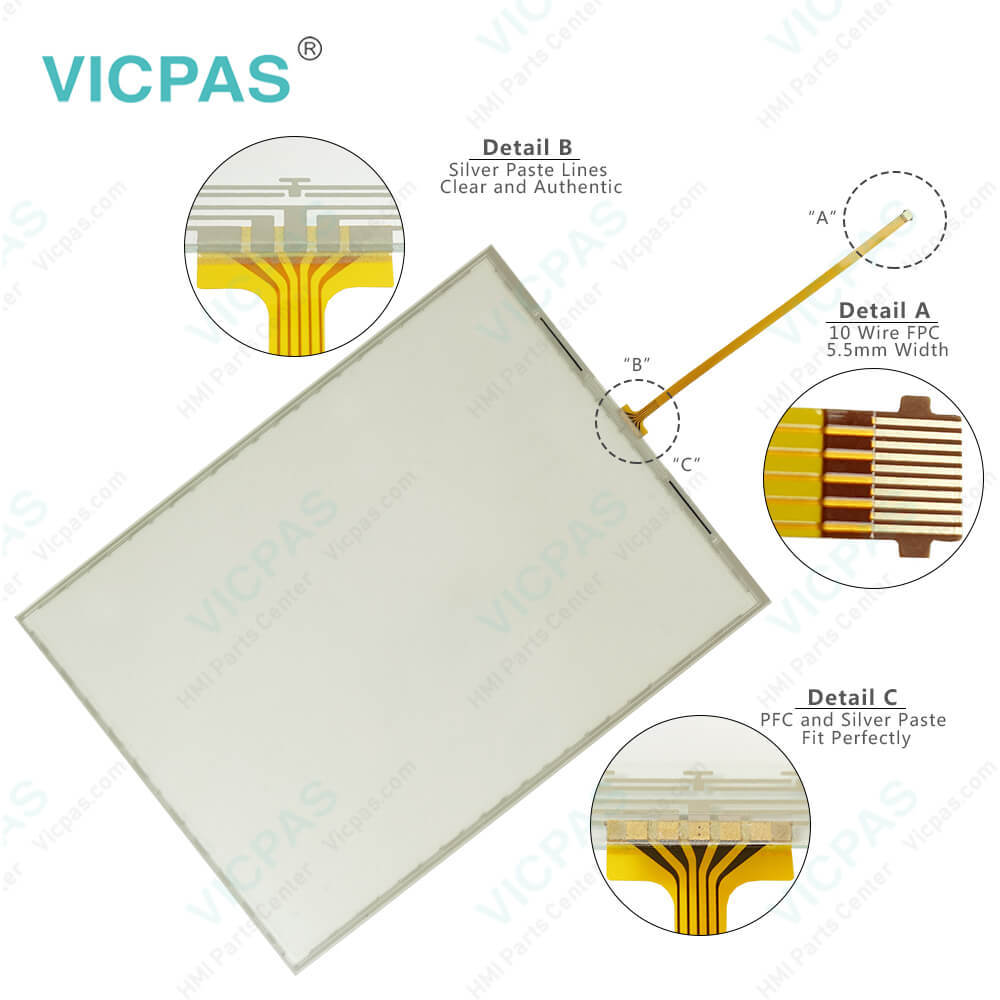
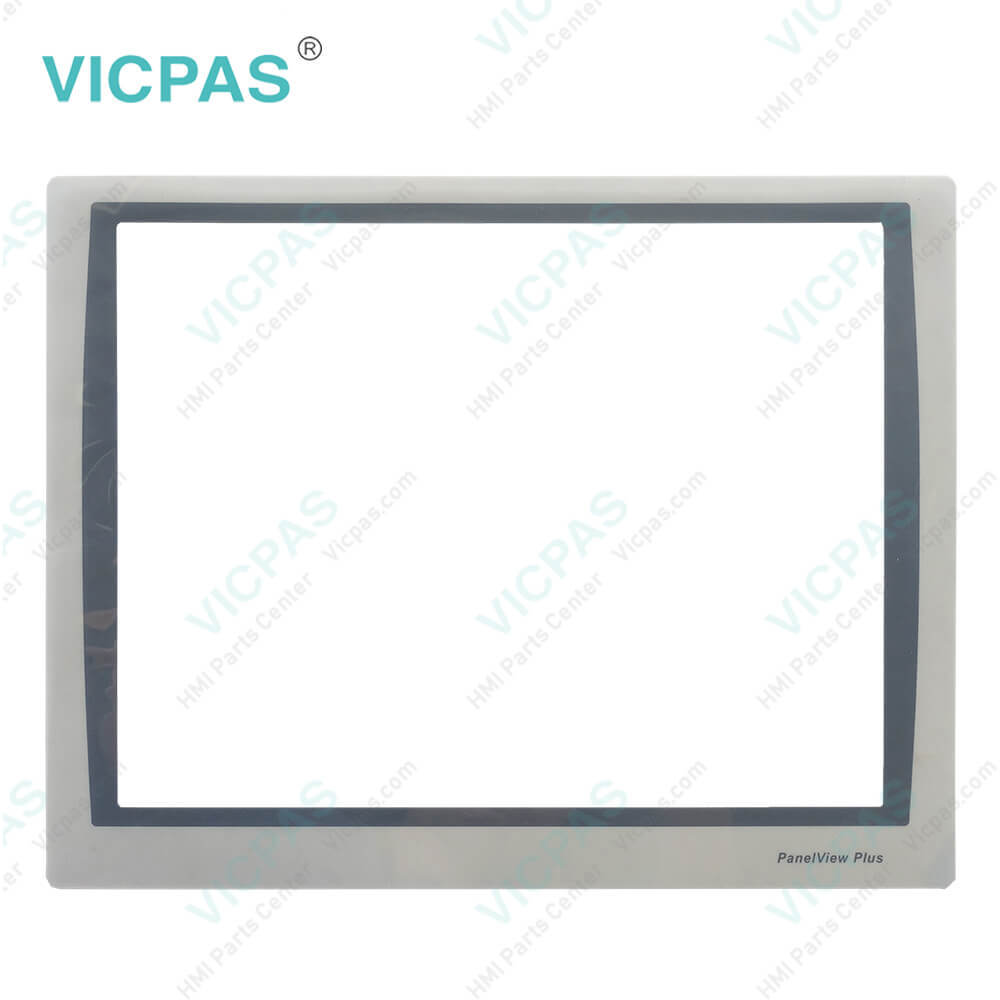
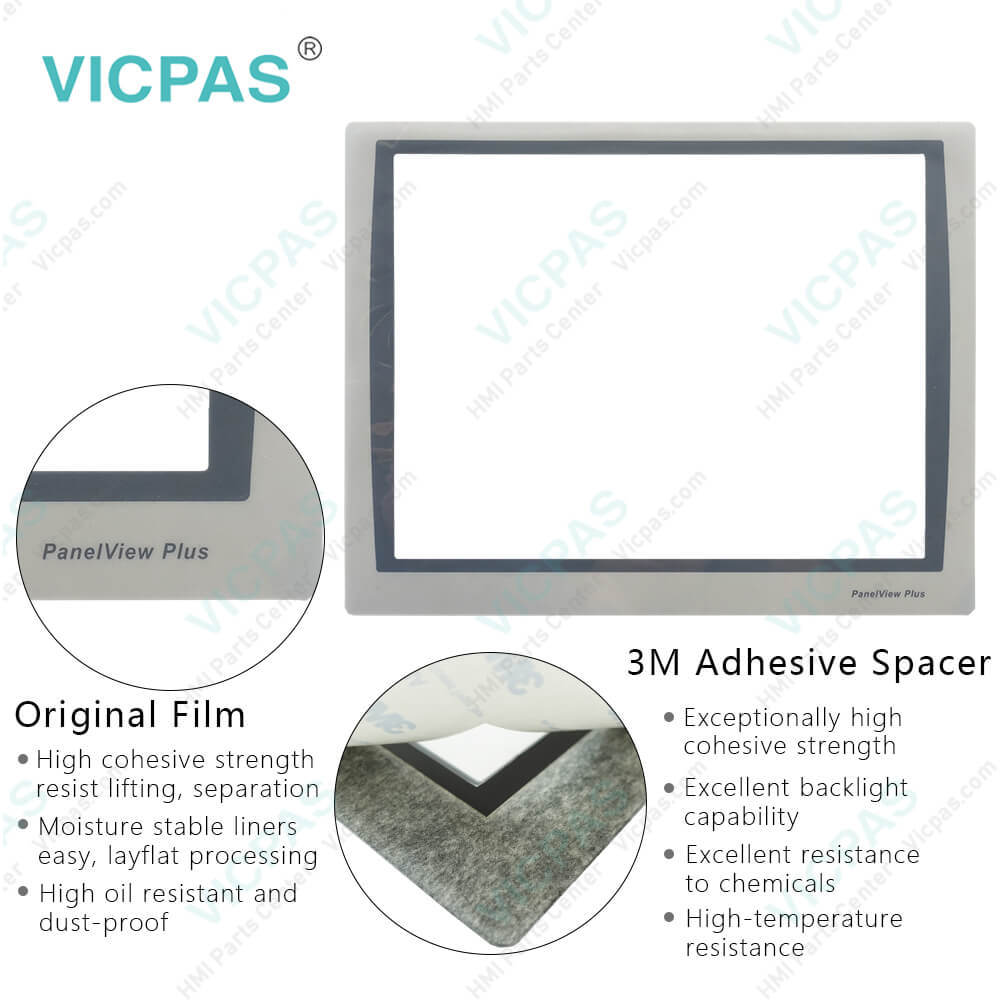
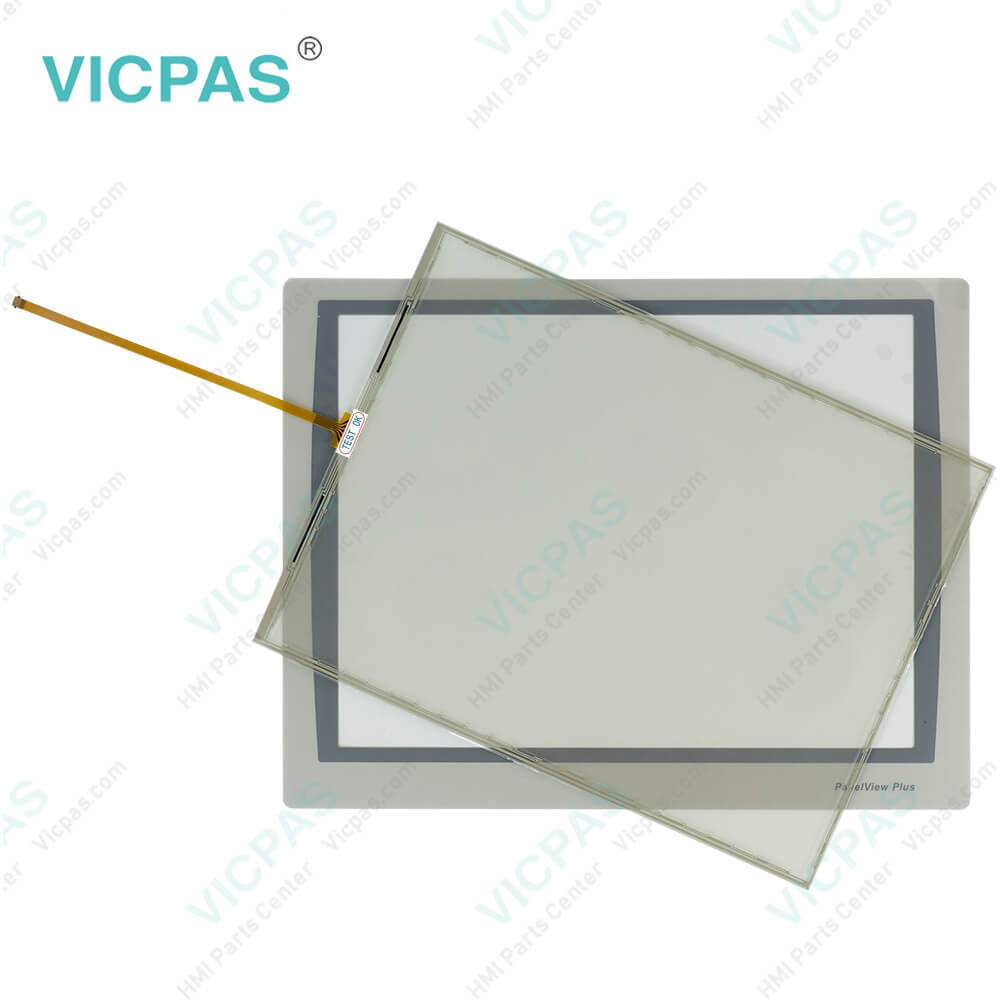
| categories | PanelView Plus 7 Performance |
|---|---|
| Brand | ALLEN-BRADLEY |
| Model | 2711P-T15C22D9PK |
| Warranty | 365 Days |
| Product Line | Panelview Plus 7 |
| Supply | Panelview Plus 7 Touchscreen Panel |
| Parts | Touchscreen Panel Glass Protective Film |
| Terms of Payment | Western Union, MoneyGram, T/T, Paypal, PayPal, Credit Card |
| Update Time | 2026-02-09 16:44:39 |
Shipping
Specifications:
| Part Number : | 2711P-T15C22D9PK |
| Display Size: | 15 inches |
| Display Color: | Amber |
| Warranty: | 365 days Warranty |
| Product Line: | Panelview Plus 7 |
| Input Type: | Touchscreen |
| Mounting position: | vertical |
| Communication: | ControlNet |
| Software: | FactoryTalk |
Related BB Teach Pendant Part No.:
| 2711P-T15C22D9PK | Description | Inventory status |
| 2711P-T15C21D9P | PanelView Plus 7 Touch Screen Panel Glass Overlay LCD Display | In Stock |
| 2711P-T15C22A9P | PanelView Plus 7 Touch Panel Glass Front Overlay LCD Screen | Available Now |
| 2711P-T15C22A9P-A | Allen Bradley Panel Plus 7 Touchscreen Protective Film LCD Display | In Stock |
| 2711P-T15C22A9P-B | Allen Bradley Panel View Plus 7 Touch Screen Overlay Display | In Stock |
| 2711P-T15C22D9P | PanelView Plus 7 Touch Panel Front Overlay LCD Display Screen | In Stock |
| 2711P-T15C22D9P-A | PanelView Plus 7 Touch Panel Protective Film LCD Display Panel | In Stock |
| 2711P-T15C22D9P-B | PanelView Plus 7 Touch Membrane Overlay LCD Display Repair | Available Now |
| 2711P-T15C22D9PK | Allen Bradley PanelView Plus 7 HMI Touchscreen Front Film LCD Display | In Stock |
| 2711P-T19C22A9P | PanelView Plus 7 Touchscreen Membrane Switch Overlay LCD Screen | Available Now |
| 2711P-T19C22A9P-A | AB Panel View Plus 7 HMI Panel Glass Overlay LCD Display | In Stock |
| 2711P-T19C22A9P-B | Allen Bradley Panel View Plus 7 Touchscreen Film LCD Display | In Stock |
| 2711P-T19C22D9P | PanelView Plus 7 Touch Glass Front Overlay LCD Display Panel | In Stock |
| 2711P-T19C22D9P-A | PanelView Plus 7 Touchscreen Overlay LCD Display Screen | Available Now |
| 2711P-T19C22D9P-B | Allen Bradley PanelView Plus 7 Panel Glass Front Overlay Display | In Stock |
| 2711P-T19C22D9PK | PanelView Plus 7 Touchscreen Protective Film LCD Display Panel | Available Now |
2711P-T15C22D9PK Panelview Plus 7 Touch Screen Panel PDF Download:
FAQ:
Question: How to enter characters in the display area above the 2711P-T15C22D9PK keyboard?
Answer: 1. Select a character on the keyboard. • On a touch screen terminal, touch a key. • On a keypad terminal, press the arrow keys to navigate to a key. 2. Press Select to copy the character to the display area. 3. Press Enter when done to exit the keyboard.
Question: How to enable Allen Bradley Plus 7 Performance Terminals desktop access?
Answer: 1. Press Terminal Settings, then choose Desktop Access Setup. 2. To select Allow, press Desktop Access. The Enter Password dialog box opens. Each time that you change desktop access from disallow to allow, you must enter a password. The default password is ‘password’. 3. To type the password, press Password. 4. Press Enter. 5. To return to Desktop Access Management, press Enter again. 6. Press OK to exit Desktop Access Management, then Close to exit terminal settings and return to the FactoryTalk View ME Station dialog box. 7. To access the desktop, press Exit. When desktop access is enabled, you are not required to enter a password.
Question: What are the tips of configuring the 2711P-T15C22D9PK Ethernet ports of the terminal?
Answer: 1. Press Terminal Settings, then choose Networks and Communications>Network Connections>Network Adapters. 2. To access the Ethernet link settings, press Settings. 3. To enable or disable the ports that you want to use for your network configuration, press Ethernet Link1 and Ethernet Link2.
Question: How to connect the operator terminal 2711P-T15C22D9PK to an AC power source?
Answer: 1. Verify that the wiring is not connected to a power source. 2. Strip 7 mm (0.28 in.) of insulation from the ends of the wire. 3. Secure the AC power wires to the marked terminals (L1 and L2N) on the terminal block.4. Secure the protective earth ground wire to the marked terminal on the terminal block. The protective earth terminal must be connected to a low-impedance earth ground.5. Apply power to the operator terminal.
Common misspellings:
2711P-T15C22D9P271lP-T15C22D9PK27l1P-T15C22D9PK7211P-T15C22D9PK2711P-T15C22DD9PK2711P--T15C22D9PK
- Mobile Phone
- *Title
- *Content
 Fast Quote
 Fast Quote
 Worldwide Shipping
 12 Months Warranty
 Customize Service