




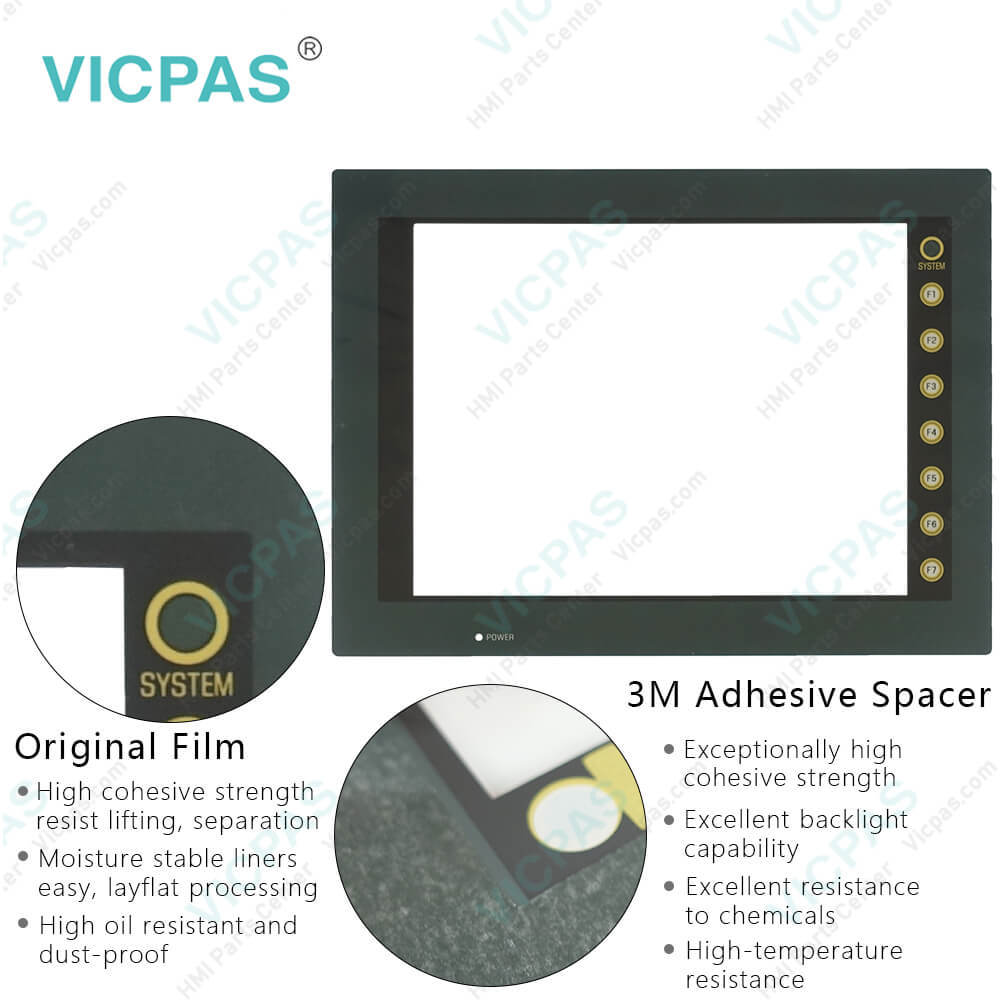
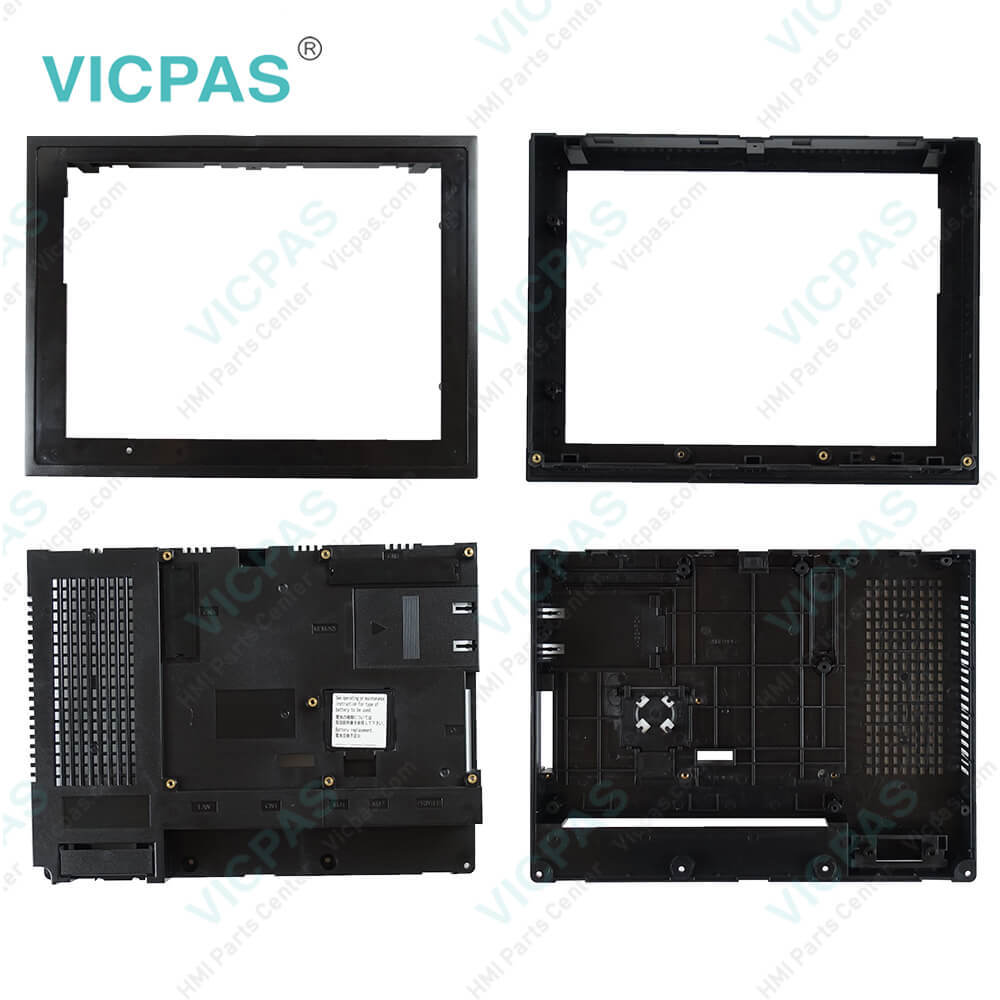
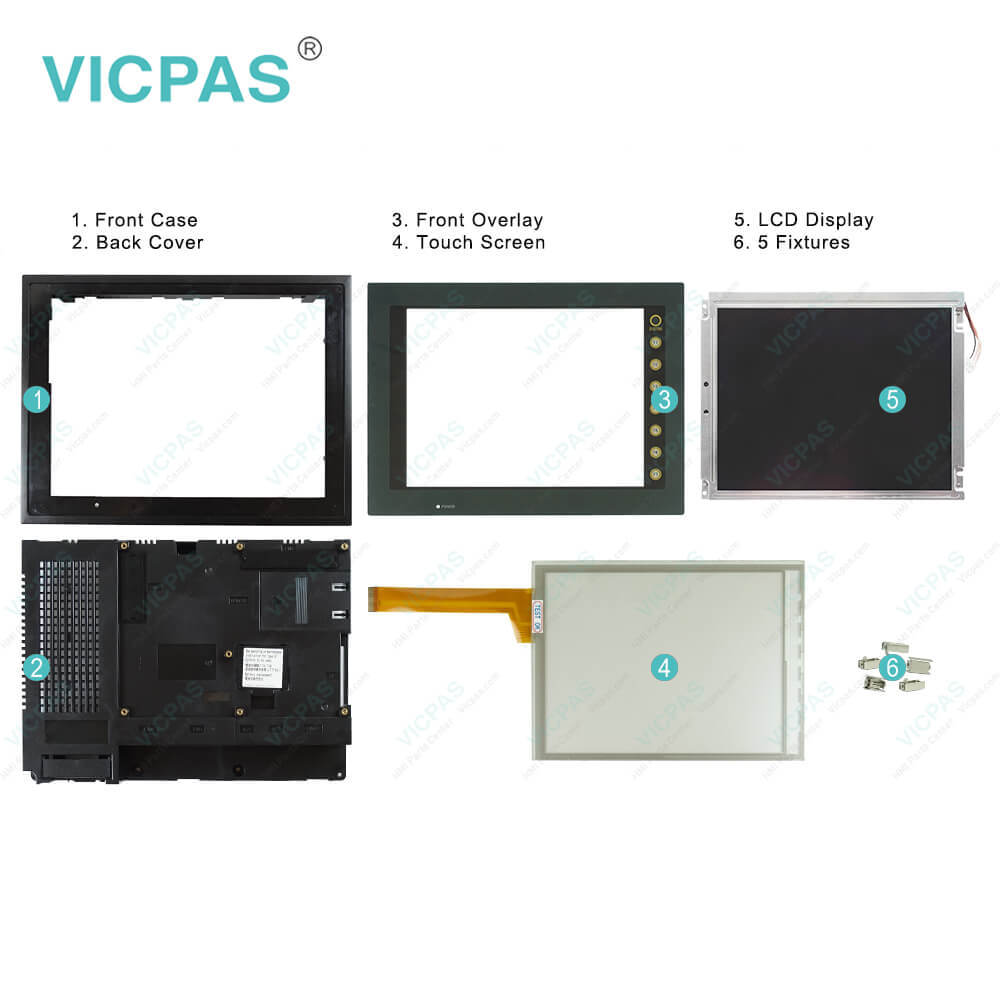
Hakko V710T Touchscreen V710TD Film Housing Repair
| categories | Hakko V7 Series |
|---|---|
| Brand | HAKKO |
| Model | V710T V710TD |
| Warranty | 365 Days |
| Product Line | Monitouch V7 Series |
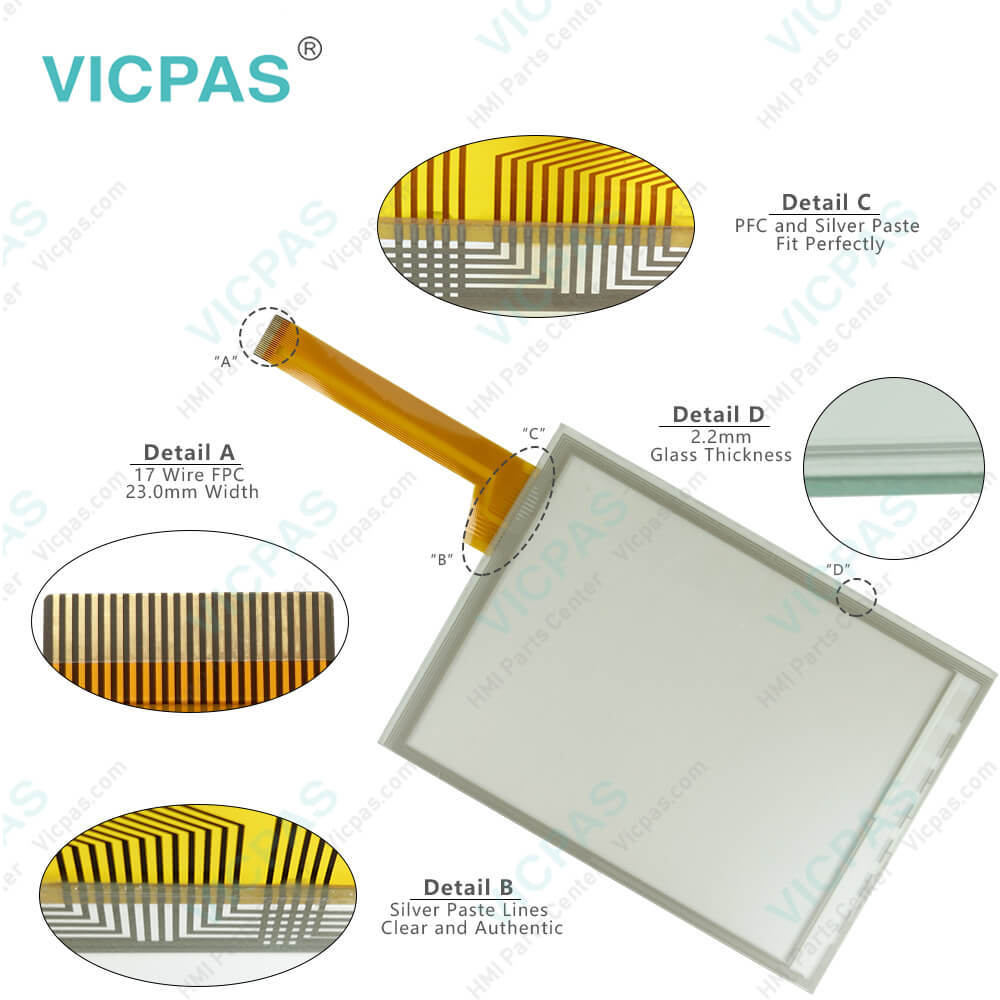
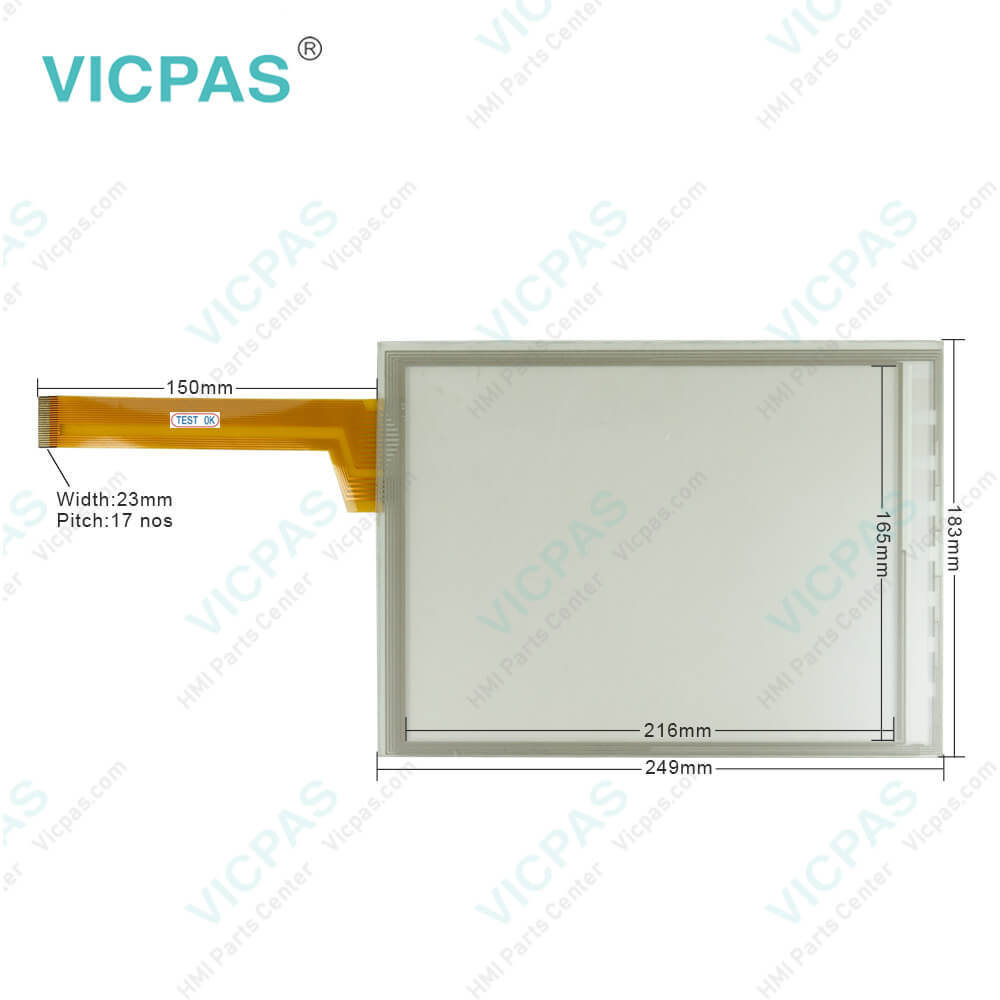
| Supply | V710T V710TD Touch Screen Glass Repair |
| Parts | Touchscreen Panel Protective Film Plastic Case |
| Terms of Payment | Western Union, MoneyGram, T/T, Paypal, PayPal, Credit Card |
| Update Time | 2026-01-31 01:43:51 |
Shipping
Specifications:
| Part Number : | V710T V710TD |
| Display Size: | 10 inches |
| Display Color: | Amber |
| Warranty: | 365 days Warranty |
| Product Line: | Monitouch V7 Series |
| Input Type: | Touchscreen Glass |
| Mounting position: | vertical |
| Communication: | ControlNet |
| Software: | FactoryTalk |
Related BB Teach Pendant Part No.:
| V710T V710TD | Description | Inventory status |
| V708C V708CD | Hakko Monitouch V708 Series Touchscreen Film Case Replacement | In Stock |
| V708SD V708iSD | Hakko Monitouch V708 Series Touch Panel Glass Front Overlay Plastic Case | Available Now |
| V710C V710CD | Hakko Monitouch V710 Series Touchscreen Overlay Housing Replacement | In Stock |
| V710CM V710CMD | Hakko Monitouch V710 Series Touchscreen Film Case Replacement | In Stock |
| V710iS V710iSD | Hakko Monitouch V710 Series Touchscreen Front Overlay Plastic Case | In Stock |
| V710iT V710iTD | Hakko Monitouch V710 Series Touch Screen Front Overlay Plastic Case | In Stock |
| V710iTM V710iTMD | Hakko Monitouch V710 Series Touch Membrane Overlay Plastic Shell | Available Now |
| V710S V710SD | Hakko Monitouch V710 Series HMI Touch Screen Front Film Housing | In Stock |
| V710T V710TD | Hakko Monitouch V710 Series Touchscreen Membrane Switch Overlay Case | Available Now |
| V710TM V710TMD | Hakko Monitouch V710 Series Panel Glass Overlay Front Cover | In Stock |
Hakko V710T Touchscreen V710TD Film Housing Repair PDF Download:
FAQ:
Question: How to set V710T V710TD Date and Time?
Answer: 1. Move the cursor using the [←] / [→] switch, and change the value by pressing the [+] / [−] switch.2. When the desired date and time are set, press the [Set] switch to determine the setting.3. The calendar data is updated as set.
Question: If a touch switch does not activate at all or if an operation is performed without pressing any touch switch, what should we do?
Answer: Check that the touch switches on the V7 panel are working properly.1. Press the [Switch Check] switch. Grids appear on the screen as shown below.2. Press a position on the panel, and check that the pressed position turns white. The switch is activated normally when the pressed position turns white. To move back to the “I/O Test” screen, press the [F4] switch.To delete white dots press the [F5] switch.3. If a position different from the pressed position turns white, refer to “Touch Switch Adjustment” on the next page and adjust the touch switch position.
Question: How to transfer Screen Data from a CF Card?
Answer: The procedure of transferring data between the V7 series and a CF card is described below.1. Mounting the CF card Insert the CF card into the CF card connector at the side of the V7 unit.* Do not remove or insert the CF card in the later steps.2. Data selection Select [Screen Data]. When the lamp is red, it is selected. 3. Transfer selection Select [Display Card] or [Display Card].
Common misspellings:
710T
V70TDV710
V710T7V10T
V71TDV71T0
V170TDV7100T
V71T0DV7110T
VV710TDVV710T
V710TDD
- Mobile Phone
- *Title
- *Content
 Fast Quote
 Fast Quote
 Worldwide Shipping
 12 Months Warranty
 Customize Service